tilkbook + Outlook Calendar integration
Connect your Outlook Calendar to tilkbook as a busy-block source. Any event on your Outlook, Outlook.com or Microsoft 365 calendar automatically blocks the matching slots on your public booking page — no account linking, just a shared ICS calendar URL. Windows and Microsoft users get conflict-free booking without leaving the Microsoft world.
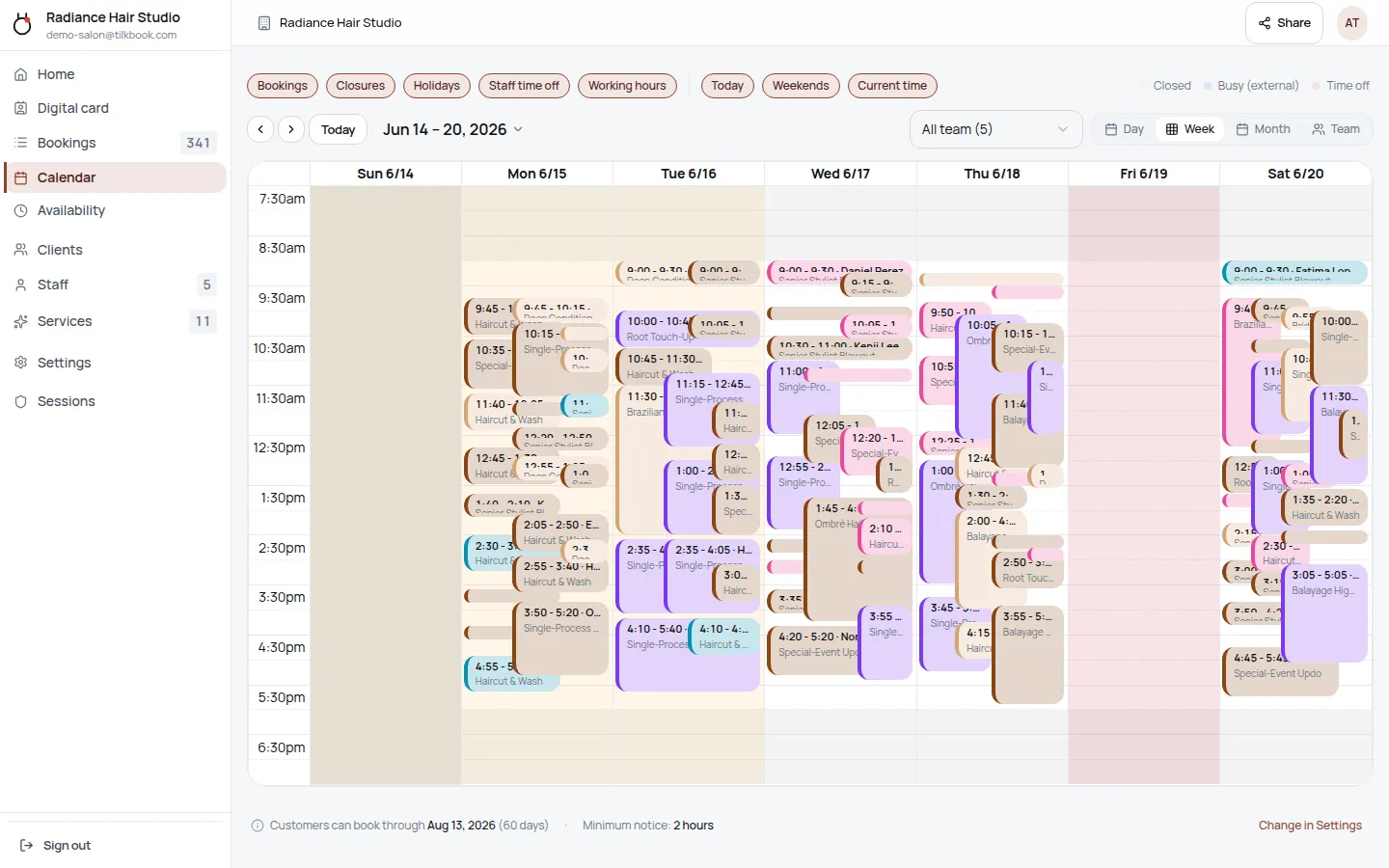
What does the Outlook integration sync?
- ↔ Outlook Calendar events block matching availability on your tilkbook booking page
- ↔ Works with Outlook.com, Microsoft 365 and Exchange calendars via their ICS share link
- ↔ tilkbook refreshes the calendar on a regular schedule to stay current
- ↔ Read-only — tilkbook never writes events into your Outlook Calendar
How do I connect tilkbook to Outlook?
Publish your Outlook Calendar as an ICS link
In Outlook.com, open Settings → Calendar → Shared calendars. Under "Publish a calendar," pick the calendar, choose "Can view all details," and click Publish. Copy the ICS link that appears (it ends in .ics).
Add the ICS URL in tilkbook
In tilkbook, go to Settings → Calendar → External calendars → Add ICS feed. Paste the Outlook ICS URL. tilkbook validates the feed and shows a preview of the busy blocks it detected.
Confirm the availability preview
Blocked slots appear in red on your availability preview. Existing bookings are untouched — only new requests for those busy times show as unavailable.
How does the Outlook Calendar integration work in tilkbook?
tilkbook reads your Outlook Calendar as a read-only busy-block source. You publish your Outlook, Outlook.com or Microsoft 365 calendar as an ICS share link, paste that URL into tilkbook, and from then on every event on that calendar automatically blocks the matching slots on your public booking page. A dentist appointment in your Outlook Calendar on Thursday at 3 PM means clients cannot book you then; a team meeting on Friday morning disappears from your available times. There is no Microsoft account login, no OAuth consent screen, and no app permissions to grant — just a single calendar URL. This is the standard, universal way to keep a Microsoft calendar from being double-booked by your tilkbook booking page, and it is included free on every plan.
Who is the Outlook integration for?
The Outlook ICS path is built for people who live in the Microsoft world. If your work calendar is Outlook on a Windows PC, your personal account is Outlook.com, or your organisation runs Microsoft 365, this is the simplest way to make that calendar control your booking availability without switching ecosystems.
Common cases:
- Windows-first business owners who run their day out of the Outlook desktop app and want personal commitments to block client bookings automatically
- Consultants and professional-service providers on Microsoft 365 whose meetings and internal blocks should never collide with a client appointment booked through tilkbook
- Anyone juggling Outlook plus another calendar — you can add the Outlook ICS feed alongside an Apple Calendar or a second calendar, and all of them contribute to your busy-block pool
- People who prefer not to connect a Microsoft account — the ICS link requires no account permissions, only a published calendar URL
If your primary calendar is Google rather than Outlook, the Google Calendar integration is the better choice because it syncs both ways and writes confirmed bookings back into your calendar. The Outlook ICS path is one-way: it reads Outlook to block availability, but it does not write your tilkbook bookings into Outlook by default.
How to publish your Outlook Calendar as an ICS link
The exact path depends on which Outlook you use, but the idea is the same everywhere: publish the calendar and copy its ICS address.
On Outlook.com (personal):
- Sign in at outlook.live.com and open the Calendar
- Go to Settings → Calendar → Shared calendars
- Under Publish a calendar, choose the calendar you want to connect
- Set permissions to “Can view all details”
- Click Publish and copy the ICS link (it ends in
.ics)
On Microsoft 365 / Outlook on the web (work or school):
- Open the Calendar in Outlook on the web
- Go to Settings → Calendar → Shared calendars (your admin must allow calendar publishing)
- Publish the calendar and copy the ICS address
On the Outlook desktop app (Windows): The desktop app does not always expose a publish link directly. The reliable path is to publish through Outlook.com or Outlook on the web using the same Microsoft account, then use the ICS link from there.
Any URL that returns a valid .ics file when you open it in a browser will work in tilkbook.
Adding the Outlook ICS feed to tilkbook
Once you have your Outlook ICS URL:
- Open Settings → Calendar in your tilkbook dashboard
- Go to External calendars (the ICS feeds section)
- Click Add ICS feed and paste the Outlook URL
- tilkbook validates the feed and shows a preview of the events it detected as busy blocks
- Confirm — the blocked slots appear in red on your availability preview
You can add more than one feed. If you keep a separate Outlook calendar for personal events and another for a side project, add each as its own ICS feed and both will block your tilkbook availability.
Can Outlook show my tilkbook bookings? (The reverse direction)
Yes — and this is the second half of the Outlook story. As well as Outlook blocking your tilkbook availability, you can have Outlook display your tilkbook appointments. tilkbook publishes your bookings as a calendar feed; subscribe Outlook to that feed and your client appointments appear inside Outlook as a read-only calendar alongside your meetings.
That gives Windows and Microsoft 365 users a clean, two-direction setup without any native Outlook OAuth integration:
- Outlook → tilkbook: your Outlook events block client booking slots (the ICS feed described above)
- tilkbook → Outlook: your tilkbook bookings show up in Outlook so you see everything in one calendar
Both directions are ICS-based, read-only, and free on every plan.
Important limitations of the Outlook ICS path
The ICS approach is deliberately simple, so a few constraints are worth knowing before you depend on it:
Refresh delay: tilkbook polls ICS feeds on a schedule, not in real time. A new Outlook event can take a few hours to register as a blocked slot. If you need an immediate block — you just accepted a meeting starting soon — add a time-off entry directly in tilkbook for instant effect.
Read-only by default: the busy-block direction does not write tilkbook bookings into Outlook. To see your bookings in Outlook, subscribe Outlook to tilkbook’s booking feed (the reverse direction above).
Times only, no details: tilkbook reads start and end times, not event titles or attendees. Blocked slots show as “Busy” with no detail about the underlying Outlook event — which also keeps your meeting subjects private.
Published calendar URL: the ICS link must be publicly reachable, since the URL itself grants read access. Treat it like a password — anyone with the link can read that calendar’s busy times.
Compared to the Google Calendar integration
If you are choosing between connecting Outlook (ICS) and Google Calendar (native), here is the difference:
| Outlook (ICS feed) | Google Calendar (native) | |
|---|---|---|
| Blocks tilkbook availability | Yes | Yes |
| Writes bookings into your calendar | Via reverse ICS subscription | Yes, automatically |
| Real-time updates | No (periodic refresh) | Yes (push webhooks) |
| Requires account login / OAuth | No — URL only | Yes — Google sign-in |
| Auto Google Meet links on virtual services | No | Yes |
If Google Calendar is your main calendar, the Google Calendar integration is the fuller experience. If you are a Microsoft user, the Outlook ICS path keeps you in your ecosystem with no account connection. The same ICS mechanism also powers the Apple Calendar integration, so iCloud users get the identical setup.
For the complete picture of what tilkbook includes free, see the features overview and pricing. To browse every available connection, see the integrations directory.
Ready to keep your Outlook Calendar and tilkbook in sync? Claim your tilkbook page — free, unlimited bookings, live in minutes.
Integration FAQ.
Does tilkbook write my bookings back into Outlook?
No. The Outlook connection is read-only — tilkbook reads your Outlook Calendar to block busy slots but never creates or edits events in it. If you want your tilkbook bookings to appear inside Outlook, you can subscribe Outlook to tilkbook's booking feed separately (the reverse direction), which adds your appointments to Outlook as a read-only calendar.
Which Outlook calendars work — Outlook.com, Microsoft 365, Exchange?
All of them, as long as the calendar can produce an ICS share link. Outlook.com and Microsoft 365 both expose a "Publish a calendar" ICS option in calendar settings; Exchange calendars typically offer an ICS address too. Any URL that returns a valid .ics file will work.
Is the Outlook Calendar integration free?
Yes. Importing ICS feeds — including your Outlook Calendar — is included on every tilkbook plan, including the free tier. There is no add-on or upgrade required for calendar busy-block import.
How quickly does an Outlook event block my availability?
tilkbook polls ICS feeds on a regular schedule rather than in real time, so a brand-new Outlook event may take a few hours to appear as a blocked slot. For an immediate block, add a time-off entry directly in tilkbook, which takes effect at once.
Why use the ICS link instead of a full account connection?
tilkbook's native two-way sync is built for Google Calendar. For Outlook and Microsoft calendars, the ICS link gives you reliable read-only busy-blocking without an OAuth connection or Microsoft account permissions — paste one URL and you are done.
Connect your calendar.
Free to start — no card. Two-way sync on every plan, including free.