tilkbook + Apple Calendar integration
Add your Apple Calendar as a busy-block source in tilkbook. Any event on your Apple Calendar automatically blocks the matching slots on your public booking page — no account linking required, just a calendar URL.
What does the Apple Calendar integration sync?
- ↔ Apple Calendar events block matching availability on your tilkbook booking page
- ↔ Any ICS-compatible calendar works — not just Apple Calendar
- ↔ tilkbook refreshes the calendar every few hours to stay current
- ↔ Read-only — tilkbook never writes to your Apple Calendar
How do I connect tilkbook to Apple Calendar?
Get your Apple Calendar ICS subscription URL
In Apple Calendar (macOS or iOS), right-click the calendar you want to connect → Get Info → tick "Public Calendar" → copy the WebCal link. Replace "webcal://" with "https://".
Add the ICS URL in tilkbook
In tilkbook, go to Settings → Calendar → External calendars → Add ICS feed. Paste the URL. tilkbook validates the feed and shows a preview of upcoming busy blocks.
Confirm availability preview looks correct
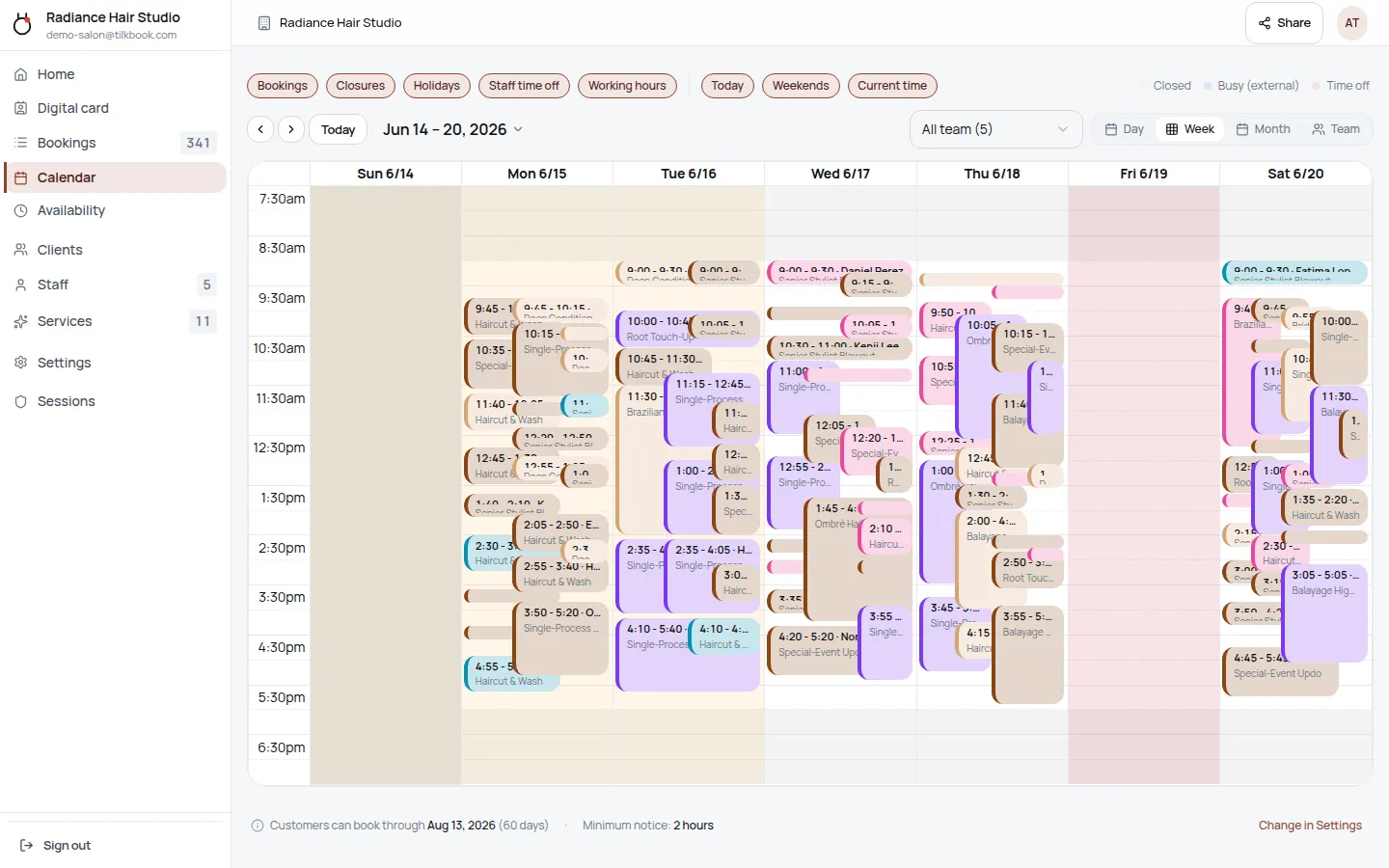
tilkbook shows blocked slots in red on your availability preview. Existing bookings are not affected — only new slot requests for blocked times will show as unavailable.
How does the Apple Calendar integration work in tilkbook?
tilkbook can import any ICS feed — including your Apple Calendar’s secret subscription address — as a read-only busy-block source. Every event on the calendar you connect will automatically block the corresponding slots on your tilkbook public booking page. A doctor’s appointment on your iCloud Calendar on Tuesday at 2 PM means clients cannot book that slot. A personal errand on Wednesday morning disappears from your available times. No account linking, no OAuth flow, no app permissions — just a calendar URL.
This is the simplest path to basic availability sync for anyone who uses Apple Calendar on iPhone or Mac and does not want to go through a full Google OAuth2 authorisation. It is also the right path for Outlook users, people who use Fantastical or BusyCal backed by iCloud, and anyone with a CalDAV-compatible calendar that publishes an ICS subscription URL. The ICS/iCal format is a universal standard — if your calendar app can export a subscription link, tilkbook can read it.
The integration is read-only. tilkbook never writes back to your Apple Calendar, creates events, or modifies any existing event. Your calendar stays exactly as it is; tilkbook only observes it to adjust what clients can book.
Setup is included on every tilkbook plan at no extra cost.
Who is this integration for?
The ICS import path fills a specific gap: people who already use Apple Calendar on their iPhone as the calendar they actually look at, and who want their personal schedule to block their booking availability, without setting up a Google account or going through a full OAuth consent flow.
Common use cases:
- Hair stylists and barbers who manage their personal time in iCloud Calendar but run their business bookings through tilkbook
- Independent massage therapists or fitness trainers who use their iPhone calendar as their life organiser and want slow-updating availability that is still good enough to prevent obvious conflicts
- Professionals on Apple devices who also use Outlook — Outlook.com publishes an ICS subscription URL; connecting it to tilkbook means your Microsoft calendar events also block your tilkbook availability
- Anyone who prefers not to grant tilkbook full Google Calendar access — the ICS path requires no account permissions at all, only a URL
If you also want tilkbook to write your confirmed bookings into your calendar — so client appointments appear alongside your personal events — that requires the full Google Calendar integration, which does both directions. The ICS path is one-way only.
How to get your Apple Calendar ICS subscription URL
Apple Calendar makes it straightforward to export a subscription link on macOS. On iOS the path is slightly different:
On macOS (Apple Calendar):
- Open Apple Calendar
- Right-click the calendar you want to connect in the left sidebar
- Select Get Info
- Check the Public Calendar box
- Copy the link — it will start with
webcal:// - Replace
webcal://withhttps://— tilkbook needs an https URL to fetch it
On iOS: Sharing a calendar subscription URL from the iPhone Calendar app is not directly available from the app itself. The easiest workaround is to use iCloud.com in a browser on your iPhone or a Mac to get the subscription link from the calendar’s sharing settings.
For Google Calendar:
In Google Calendar, go to Settings → [Your calendar] → Integrate calendar and look for the Secret address in iCal format. Copy that URL (it starts with https://). This is a private URL — do not share it publicly.
For Outlook.com: In Outlook.com, go to Settings → View all Outlook settings → Calendar → Shared calendars. Under “Publish a calendar,” select your calendar, choose “Can view all details,” and click Publish. Copy the ICS link shown.
Any URL that returns a valid .ics file when you visit it in a browser will work.
Adding an ICS feed to tilkbook
Once you have your https ICS URL:
- Open Settings → Calendar in your tilkbook dashboard
- Go to External calendars (or the ICS feeds section, depending on your view)
- Click Add ICS feed and paste your URL
- tilkbook validates the feed and shows a preview of upcoming events it detected as busy blocks
- Confirm — the blocked slots appear in red on your availability preview immediately
If you manage multiple calendars across different platforms — an Apple Calendar for personal events, an Outlook calendar for a part-time job, a separate iCloud calendar for the kids’ schedule — you can add each as a separate ICS feed. All of them contribute to the busy-block pool.
Important limitations of the ICS path
The ICS import is intentionally simple, which means it has constraints worth knowing before you rely on it:
Refresh delay: tilkbook fetches ICS feeds on a regular schedule, not in real time. A new event you add to your Apple Calendar may take a few hours to appear as a blocked slot in tilkbook. If you need an immediate block — for example, you just agreed to a meeting starting in 30 minutes — add a time-off block directly in tilkbook for instant effect.
Read-only: tilkbook does not write confirmed bookings back to your Apple Calendar. Your tilkbook bookings will not appear in your iPhone Calendar app. If you want bookings in your Apple Calendar, you would need to add them manually or export and import as a one-time snapshot.
No event details: tilkbook only reads start and end times — not event titles, descriptions, or attendees. Blocked slots on your booking page show as “Busy” with no detail about what the underlying event is.
Public calendar URL: The ICS URL tilkbook fetches must be publicly accessible — the URL alone is what grants access. Treat it like a password-equivalent for your calendar. Apple Calendar’s “Public Calendar” link and Google Calendar’s “Secret address” are both designed for this pattern; the “secret” in Google’s name means the URL is not indexed or advertised, but anyone with the URL can read the calendar.
Compared to the Google Calendar integration
The ICS path and the Google Calendar integration solve different problems:
| ICS feed (Apple Calendar / Outlook / any) | Google Calendar (bidirectional) | |
|---|---|---|
| Blocks tilkbook availability | Yes | Yes |
| Writes bookings to your calendar | No | Yes |
| Real-time updates | No (periodic refresh) | Yes (push webhooks) |
| Requires account login / OAuth | No — URL only | Yes — Google sign-in |
| Works with non-Google calendars | Yes | No |
If you use Google Calendar as your primary calendar and want confirmed bookings to appear there automatically, use the Google Calendar integration. If you use Apple Calendar, Outlook, Fantastical, or BusyCal — or if you just want a simple busy-block import without any account connection — the ICS path is the right choice.
Both integrations are free, included on every tilkbook plan. You can use both at the same time: a Google Calendar for two-way sync plus one or more ICS feeds from other calendar sources, all contributing to availability.
For more on tilkbook’s free booking features, see the features overview. For questions about plans and what is included, visit pricing. To explore all available integrations, see the integrations directory.
Integration FAQ.
Does this work with Google Calendar or Outlook too?
Yes — any calendar that publishes an ICS/iCal URL works, including Google Calendar (its "Secret address in iCal format"), Outlook.com, and any CalDAV-compatible calendar. Paste the https:// URL and tilkbook handles the rest.
Is the Apple Calendar integration free?
Yes — importing ICS feeds is included on every tilkbook plan, including the free tier.
How often does tilkbook refresh the calendar?
tilkbook fetches ICS feeds on a regular schedule throughout the day. Very recent calendar changes (under a few hours old) may not be reflected immediately. For critical time blocks, add them as tilkbook time-off entries for instant effect.
What if I use a different app — Fantastical, BusyCal, etc.?
As long as the app stores events in Apple Calendar (or any CalDAV/ICS-compatible backend), the ICS subscription URL from that calendar will work.
Connect your calendar.
Free to start — no card. Two-way sync on every plan, including free.